USBUtil — Free PS2 ISO to USB Converter
Convert PlayStation 2 game ISOs into USB-compatible format. Split large files for FAT32 drives and manage your game library with a single tool.
What Is USBUtil?
A free Windows tool built for managing and converting PS2 game ISOs to play from USB drives
PS2 Games on USB, Without the Hassle
USBUtil is a free Windows utility that converts PlayStation 2 game ISOs into a format compatible with USB drives. If you have a modded PS2 running Free McBoot and Open PS2 Loader (OPL), this is the tool that bridges the gap between your ISO collection and actually playing those games off a USB stick.
The core problem USBUtil solves is simple: FAT32 drives can’t store files larger than 4 GB, and many PS2 games exceed that. USBUtil splits large ISOs into smaller parts (the ul.* format) and generates a ul.cfg file that OPL reads to reassemble the game at load time. You end up with a USB drive your PS2 can actually read.
More Than Just a File Splitter
Beyond splitting ISOs, USBUtil handles disc ripping, letting you pull games directly from original PS2 CDs and DVDs into the right format. It also includes a game library view where you can browse titles by name, size, and region. Need to patch an ISO or strip out intro videos? The built-in ISO editor handles that too.
The program was developed by ISEKO, a Spanish homebrew developer, and remains at version 2.2 (released July 2018). It still runs fine on modern Windows, from 7 through 11, and the 5.62 MB download keeps things light. Despite not receiving updates recently, USBUtil continues to be one of the most recommended PS2 USB tools in homebrew communities on Reddit, PSX-Place, and various PS2 forums.
Who Is This For?
If you own a PS2 with Free McBoot installed and want to play backups from a USB drive instead of optical discs, USBUtil is the standard tool for the job. Compared to alternatives like OPLUtil or Tihwin, USBUtil bundles more features in one place: ISO conversion, disc ripping, game management, and ISO patching. It handles NTSC, PAL, and NTSC-J games, so region doesn’t matter.
Key Features
USBUtil packs everything you need to convert, split, and organize PS2 game ISOs for USB loading — all in one portable Windows application.
ISO to ul.* Conversion
Convert standard PS2 ISO files into the ul.cfg split-file format that Open PS2 Loader (OPL) and USBExtreme-compatible loaders require. The conversion writes a ul.cfg entry and splits the image into numbered parts automatically.
Automatic FAT32 Splitting
FAT32 caps individual files at 4 GB. USBUtil handles this by splitting larger PS2 ISOs into multiple smaller chunks that fit within the limit. Games like God of War II (3.8 GB+) transfer to your USB drive without manual workarounds.
Disc Ripping
Insert an original PS2 CD or DVD and rip it directly to ISO or ul.* format. USBUtil reads the disc, pulls the game data, and writes it to your chosen output — no third-party burning software needed in the pipeline.
Game Library Manager
Browse every game on your USB drive in a sortable list showing title, file size, region (NTSC, PAL, NTSC-J), and conversion status. Sort by name, size, or region to find what you need quickly across large collections.
ISO File Replacement
Swap individual files inside a PS2 ISO without rebuilding the whole image. This is useful for applying fan translations, texture mods, or config patches — you replace only the specific files that changed.
OPL and USBExtreme Support
Output files work with both Open PS2 Loader and older USBExtreme/USBAdvance loaders. Unlike alternatives such as OPLUtil or Tihwin, USBUtil supports the legacy ul.cfg naming convention that both loader families recognize.
Video Track Control
Enable or disable FMV (full-motion video) tracks inside a game ISO. Some PS2 titles play smoother from USB when their pre-rendered cutscenes are stripped out, freeing up read bandwidth for gameplay data.
Multi-Region Detection
USBUtil automatically identifies game regions — NTSC-U/C, PAL, and NTSC-J — during import or scan. Region tags appear in the game list so you can track which titles belong to which format at a glance.
ISO Patching Tools
Apply binary patches or modify ISO headers directly inside the application. Useful for compatibility fixes that certain PS2 titles need before running from USB, especially games with known OPL quirks.
Portable and Lightweight
The entire application ships as a 5.62 MB ZIP with no installer. Extract it to any folder and run the executable. It works on Windows XP through Windows 11, making it easy to carry on the same USB drive as your games.
All 10 features ship in USBUtil v2.2 — download it free and start managing your PS2 library today.
System Requirements
USBUtil is a lightweight Windows application. Most PCs from the last 15 years can run it without issues.
| Component | Minimum | Recommended |
|---|---|---|
| Operating System | Windows XP SP3 (32-bit) | Windows 10 or 11 (32/64-bit) |
| Processor | Intel Pentium 4 or equivalent | Any modern dual-core CPU |
| RAM | 256 MB | 1 GB or more |
| Disk Space | 15 MB (application only) | 50 GB+ (for PS2 ISO storage) |
| Display | 1024 x 768 resolution | 1280 x 720 or higher |
| USB Drive | FAT32-formatted USB 2.0 drive | USB 3.0 drive, 64 GB+ capacity |
| Optical Drive | Not required (ISO files only) | DVD drive (for disc ripping) |
| PS2 Console | Modded PS2 with Free McBoot | PS2 Slim with FMCB + OPL installed |
USBUtil runs as a portable application — no installation needed. Extract the ZIP and run the .exe file directly.
Download USBUtil
Get the latest English version of USBUtil for Windows. The download is a portable ZIP archive – no installation required. Just extract and run.
USBUtil for Windows
USBUtil v2.2 rev1.0.exe directly. No installation, no registry changes. Your USB drive must be formatted as FAT32 for the split files to work with Open PS2 Loader. If you run into a missing DLL error on newer Windows versions, try running USBUtil in Windows XP compatibility mode (right-click the .exe, go to Properties, then the Compatibility tab). For a full walkthrough, check the Getting Started section below.
Need help setting up USBUtil? Read the step-by-step guide to get your PS2 games on USB.
Screenshots
See USBUtil in action. Click any image to view it at full size.
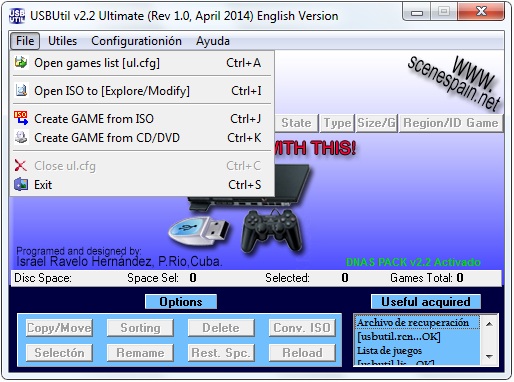
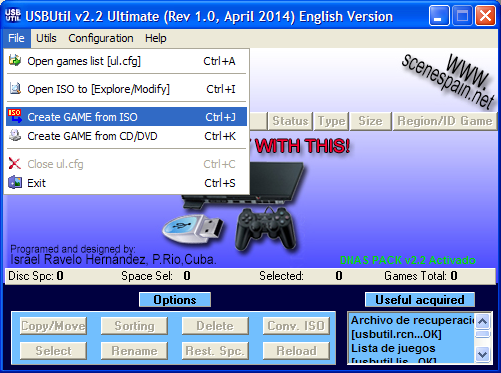
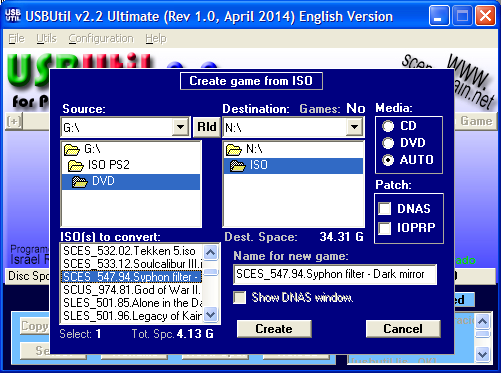
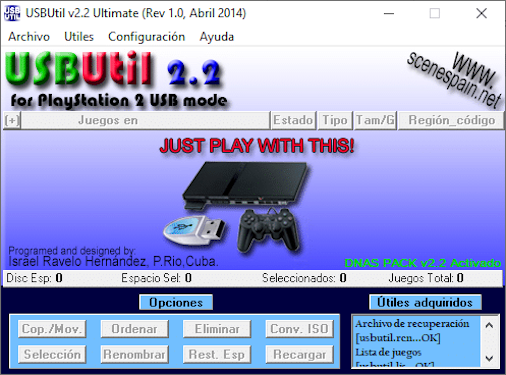
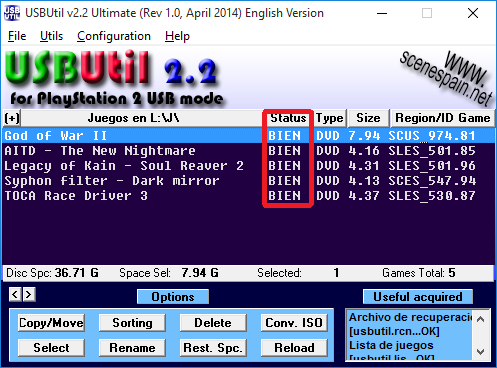
Screenshots show USBUtil v2.2 running on Windows. The interface may vary slightly across versions.
Getting Started with USBUtil
Everything you need to go from download to playing PS2 games off a USB drive. This walkthrough covers the full process with real screenshots.
Downloading USBUtil
Grab USBUtil from our download section above. The file is a ZIP archive weighing about 5.62 MB, so even on a slow connection it should take under a minute. The version you want is USBUtil v2.2 Rev 1.0 – that is the final English-translated release by ISEKO, and it works on every modern version of Windows from XP through Windows 11.
There is no 64-bit vs 32-bit choice here. USBUtil is a 32-bit application, but it runs on 64-bit Windows without issues. There is also no installer – the download is a portable ZIP. You extract it, and you are ready to go. No MSI, no setup wizard, no registry entries.
If you spot multiple versions floating around the internet (v2.0, v2.1, etc.), skip them. Version 2.2 fixed several bugs with large ISO handling and added better English translation. Stick with 2.2.
C:USBUtil and extract everything there. Keeping it in its own folder prevents the loose files from cluttering your desktop or Downloads.
Installation Walkthrough
USBUtil does not have a traditional installer. It is fully portable, which is one of its best features – nothing gets written to your registry and you can run it from a USB stick if you want.
- Extract the ZIP – Right-click the downloaded
USBUTIL_v2.2_rev1.0.zipfile and select “Extract All” (or use 7-Zip / WinRAR). You will get a folder containingUSBUtil.exeplus a few support files. - Run USBUtil.exe – Double-click it. If Windows SmartScreen pops up with a blue “Windows protected your PC” warning, click “More info” and then “Run anyway”. This happens because USBUtil is not digitally signed, not because it is malicious.
- Language check – If you downloaded the English translation by jbliz7665 (included in v2.2 Rev 1.0), the interface should already be in English. If it opens in Spanish, go to Configuration > Language > English.
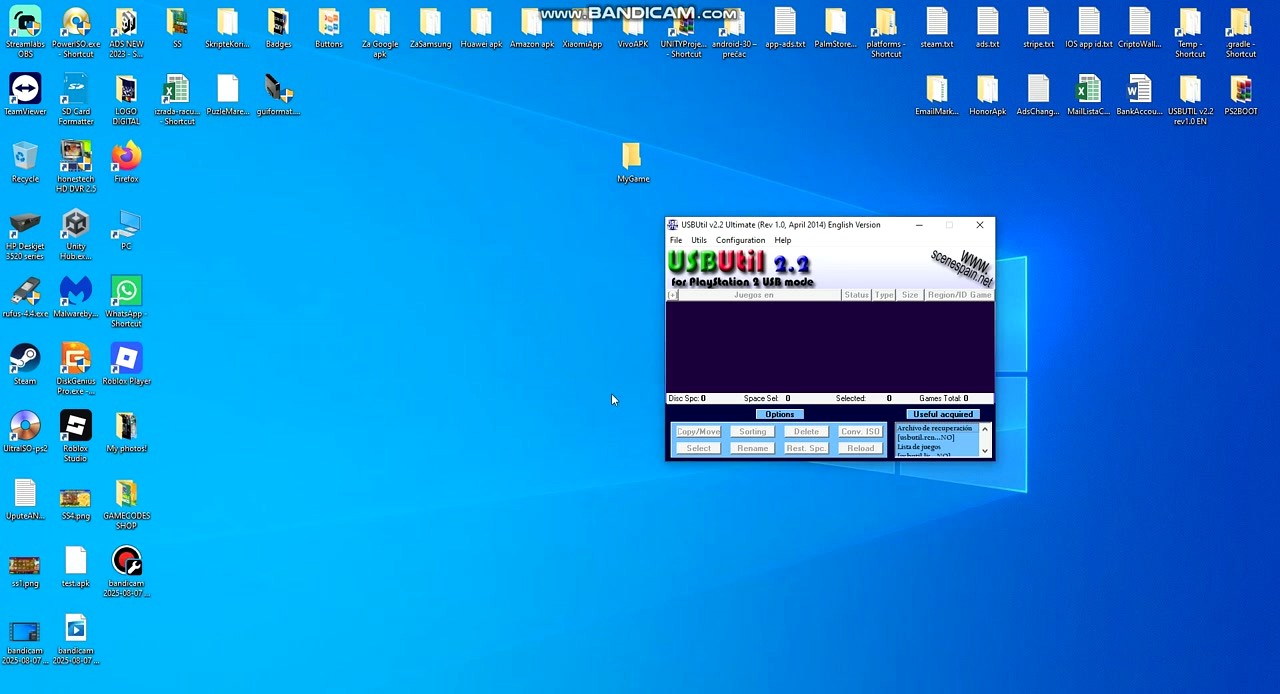
That is it. No “Next, Next, Finish” wizard. The main window opens with an empty game list, a set of option buttons at the bottom, and the “Useful acquired” panel on the right side. You are ready to start converting games.
USBUtil is Windows-only. If you are on macOS or Linux, your best alternative is Tihwin, a Java-based cross-platform tool that handles the same OPL-compatible file splitting. But for Windows users, USBUtil is the standard.
Initial Setup and Configuration
USBUtil does not have a first-run wizard or complex settings menu. There are a few things worth checking before you start converting games, though.
Format your USB drive as FAT32. This is the single most important prerequisite. OPL (Open PS2 Loader) on the PS2 requires FAT32. If your drive is NTFS or exFAT, the PS2 will not see your games.
- For drives 32 GB or smaller, Windows’ built-in Format tool works. Right-click the drive in File Explorer, choose Format, and select FAT32.
- For drives larger than 32 GB, Windows hides the FAT32 option. Use a free tool like Rufus or FAT32 Format (GUI Format) to format it. Select your drive, choose FAT32, and hit Start.
After formatting, plug the USB drive in and make sure it appears in This PC (My Computer). Note its drive letter (E:, F:, G:, etc.) because USBUtil will ask for it.
Inside USBUtil, go to Configuration in the menu bar. The main options here are:
- Language – Set to English if it is not already.
- Disc speed – If you plan to rip directly from PS2 discs using a DVD drive, this controls read speed. Leave it at the default unless you get read errors, in which case drop it to 2x.
If you are coming from USBExtreme or USBAdvance (older PS2 USB loading tools), your existing ul.cfg and game files are already compatible. Just point USBUtil to the drive and click Reload – it will pick up any games already on the drive.
Your First Game Conversion
Here is the real reason you downloaded USBUtil: converting a PS2 ISO so it works on a FAT32 USB drive via OPL. Let’s walk through it with a real example.
The problem USBUtil solves: FAT32 has a 4 GB file size limit. Many PS2 games are larger than 4 GB (God of War II is 3.8 GB, Gran Turismo 4 is 4.3 GB). You cannot just drag a 4.3 GB ISO onto a FAT32 drive. USBUtil splits the ISO into ~1 GB chunks (the “ul” format) and creates a ul.cfg config file that OPL reads to reassemble the game.
Here is the step-by-step process:
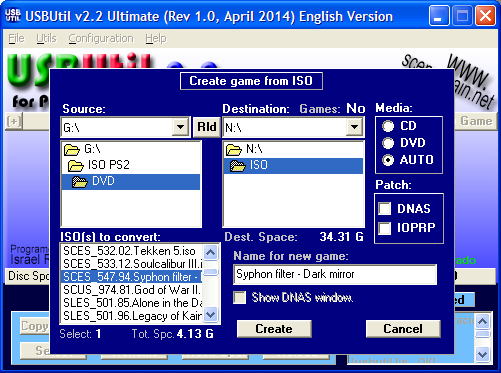
- Click “Conv. ISO” in the Options bar at the bottom of the main window. This opens the “Create game from ISO” dialog.
- Select your ISO file. In the dialog, click the browse button next to the “From” field and navigate to where your PS2 ISO is stored on your PC. Pick the .iso file.
- Set the destination. In the second field, browse to the root of your FAT32 USB drive (e.g.,
G:). Do not put it in a subfolder – OPL looks for game files at the root. - Check the game name. USBUtil auto-fills the game name from the ISO metadata. You can edit it if you want – this is the name that appears in OPL on your PS2.
- Click “Create” and wait. The progress bar fills as USBUtil splits and copies the game files.
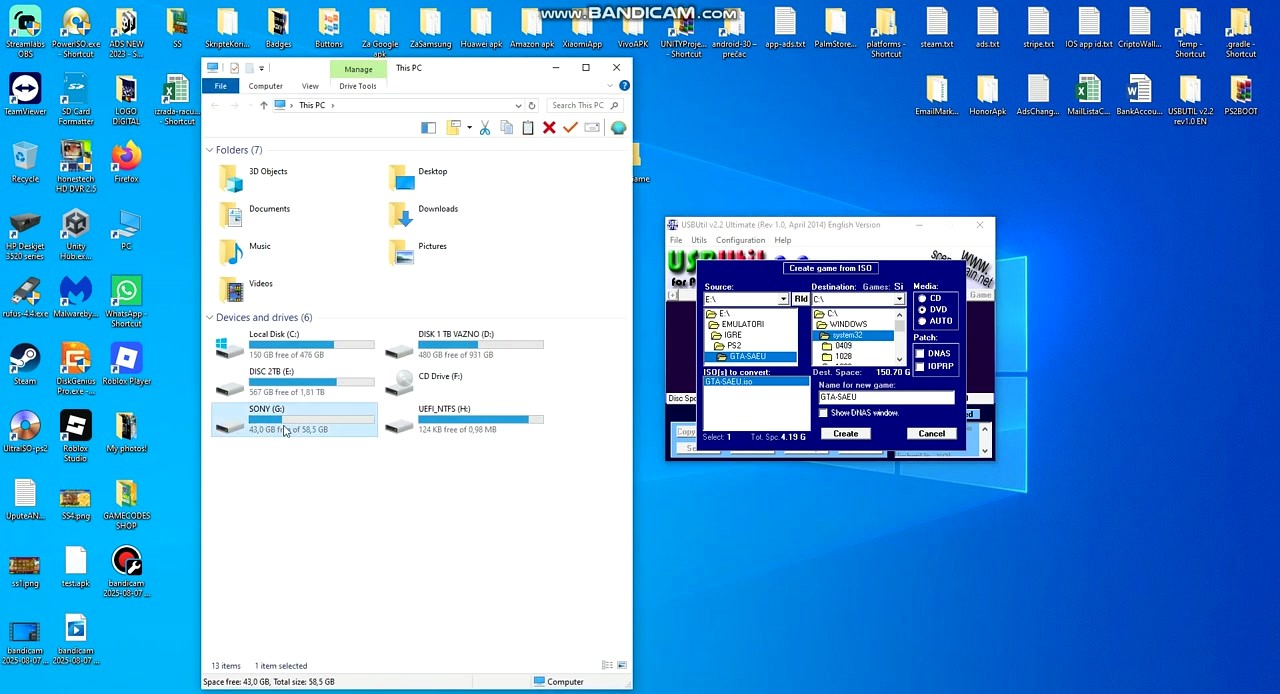
The conversion time depends on the game size and your USB drive speed. A 4 GB game on a USB 2.0 drive takes roughly 10-15 minutes. USB 3.0 drives cut that to 3-5 minutes.
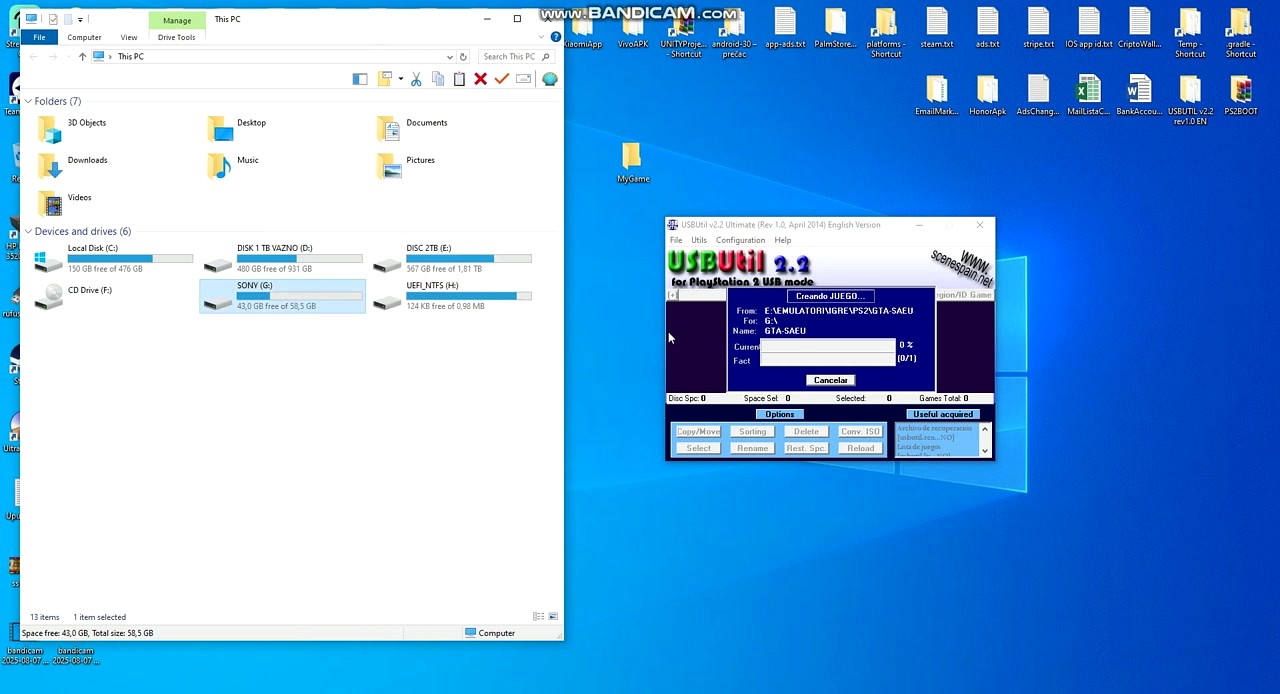
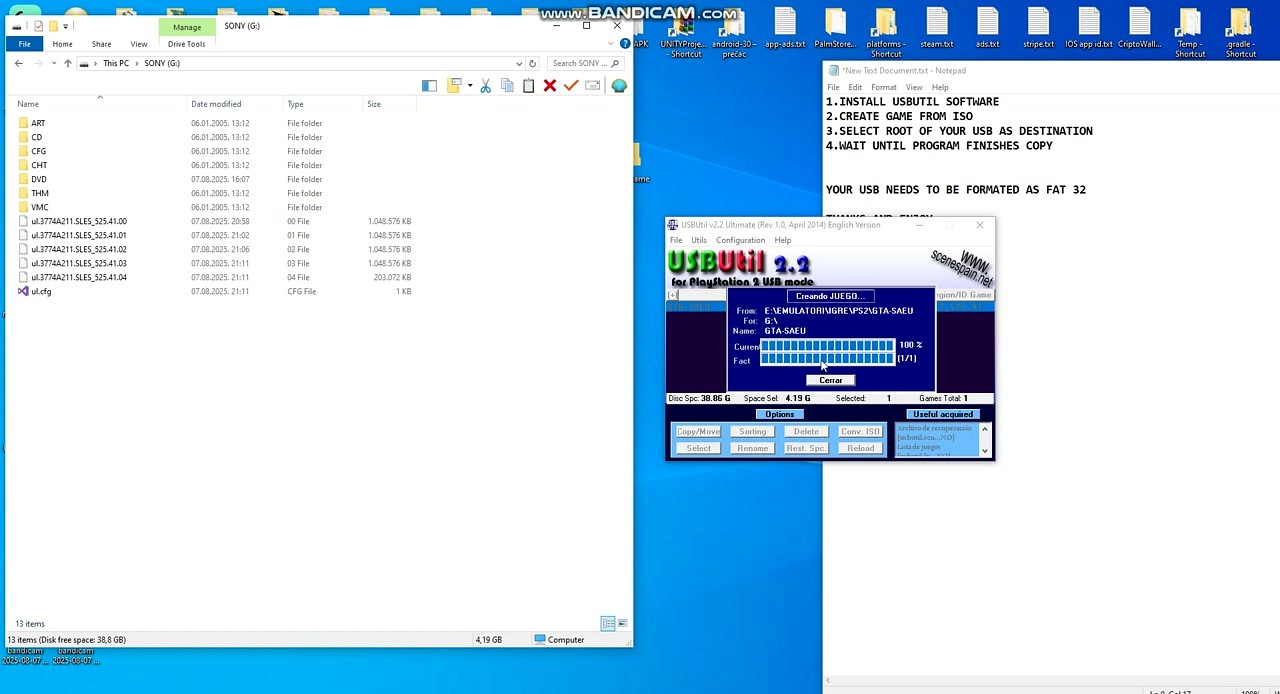
When the progress bar hits 100%, the game is on your drive. If you open the USB drive in File Explorer, you will see files named like ul.37744211.SLES_525.41.00, .01, .02, etc. These are the split chunks. You will also see a ul.cfg file – that is the game database OPL reads.
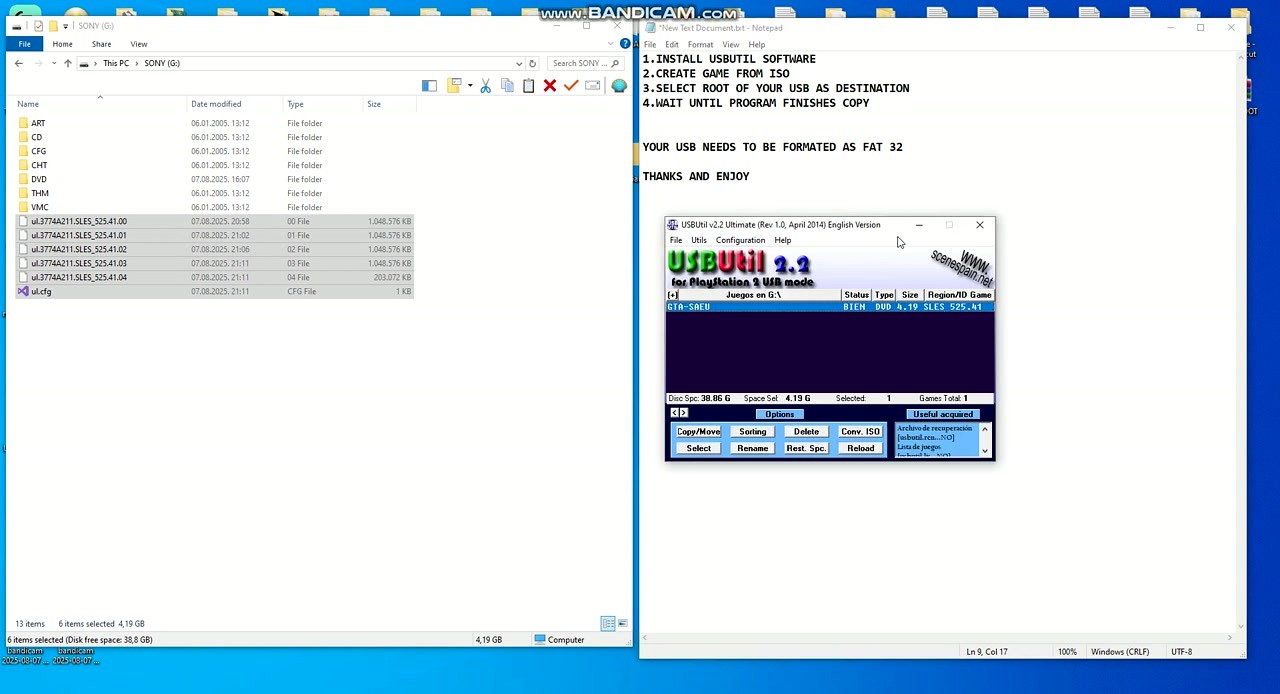
Back in USBUtil, the game now appears in the main game list with its title, size, region, and status.
For games under 4 GB (like most CD-based PS2 titles), you actually do not need USBUtil at all. Just create a folder called CD or DVD on the root of your USB drive and drop the ISO directly in there. OPL can read standard ISOs when they are under the FAT32 limit. USBUtil is only required for the larger games that need splitting.
Tips, Tricks and Best Practices
Use USB 3.0 drives when possible. The PS2 itself only has USB 1.1 ports, so playback speed is limited regardless. But transfers from your PC to the drive go much faster on USB 3.0. A 4 GB game copies in about 3 minutes on USB 3.0 versus 15 minutes on USB 2.0.
Defragment your USB drive after adding games. Fragmented files on FAT32 cause loading stutters and freezes during gameplay on the PS2. After copying several games, run a defrag tool on the drive (Windows’ built-in defragmenter works). This is the fix for the common “game freezes at loading screen” issue that fills PS2 homebrew forums.
Manage your ul.cfg carefully. Every game you add with USBUtil appends to the same ul.cfg file. If you delete a game’s split files manually from File Explorer, the entry stays in ul.cfg and OPL shows a broken listing. Use USBUtil’s Delete button instead – it removes both the files and the cfg entry.
Batch-convert multiple games. You do not need to wait for one game to finish before queuing another. Convert your games one at a time, or use the Copy/Move button to transfer existing split files between drives.
Game compatibility. About 90% of PS2 games work fine over USB with OPL. For the remaining 10% that have issues (black screen on boot, freezing mid-game), check the PS2-Home compatibility list. Some games need specific OPL mode settings (Mode 1, 2, or 3) to run properly.
Ready to start? Download USBUtil and convert your first PS2 game in minutes.
Frequently Asked Questions
Answers to common questions about USBUtil, from installation and safety to PS2 game management and troubleshooting.
Is USBUtil safe to download?
Yes, USBUtil is safe when downloaded from trusted PS2 homebrew communities. The official release by developer ISEKO has been distributed through PSX-Place and PS2-HOME since 2018, and these community-maintained copies have been verified clean by thousands of PS2 enthusiasts over the years.
The USBUtil v2.2 ZIP file is 5.62 MB in size. Some antivirus programs flag it as a false positive because it interacts with disc image files and USB devices at a low level, which triggers heuristic detection. A thread on PS2-HOME titled “Does USBUtil v2.2 contain a Trojan?” confirmed this as a false positive after users ran the file through VirusTotal with 67 of 68 engines returning clean.
- Download only from PSX-Place (psx-place.com/resources/usbutil-by-iseko.679/) or PS2-HOME forums
- Avoid random download sites that repackage the ZIP with bundled adware or installers
- The legitimate file is a portable ZIP, not a .exe installer – if you downloaded an installer, it is not the original
- Run a VirusTotal scan on the ZIP before extracting if your antivirus flags it
Pro tip: The real USBUtil is a single executable inside a ZIP archive. If your download came with a setup wizard, toolbars, or additional software prompts, you grabbed a repackaged version from an untrustworthy source.
For the verified download link, visit our Download section.
Where is the official safe download for USBUtil?
USBUtil has no official website. Developer ISEKO originally released it through Spanish-language PS2 forums, and the English translation by jbliz7665 is hosted on PSX-Place, which is the closest thing to an official source.
The latest version is USBUtil v2.2 Rev 1.0 (BETA), released on July 11, 2018. The English-translated version was posted to PSX-Place shortly after. Because USBUtil has no active official domain, many third-party download sites host copies of the program. Some of these repackage the original ZIP with adware, browser toolbars, or outright malware bundled inside fake installers.
- Recommended: PSX-Place resource page for USBUtil by ISEKO
- Also trusted: PS2-HOME forums (ps2-home.com), Internet Archive mirror
- Avoid: Sites that wrap USBUtil in a custom installer or require you to click through ad pages before downloading
- The legitimate download is a ZIP file, around 5.62 MB, containing the portable executable
Pro tip: Bookmark the PSX-Place resource page directly. It shows version history, download counts, and user reviews so you can verify you have the latest community-approved release.
You can also grab USBUtil from our Download section, which links to verified sources.
Does USBUtil work on Windows 11?
Yes, USBUtil runs on Windows 11 without issues for most users. The program is a 32-bit Windows application, and Windows 11 still supports 32-bit executables through its WoW64 compatibility layer.
USBUtil v2.2 was built for Windows XP through Windows 7, but because it uses standard Windows APIs for file operations, it works on Windows 8, 8.1, 10, and 11 as well. Some users on Reddit and PSX-Place have reported occasional issues with USB drive detection on Windows 11 when User Account Control (UAC) is set to its highest level, since USBUtil needs direct access to the USB drive.
- Extract the USBUtil ZIP to a folder on your desktop or Documents (not inside Program Files)
- Right-click the USBUtil executable and select Properties, then Compatibility tab
- Check “Run as administrator” and optionally set compatibility mode to Windows 7
- Click Apply, then launch USBUtil normally
Pro tip: If USBUtil cannot detect your USB drive on Windows 11, try running it as Administrator. Windows 11 restricts direct disk access for non-elevated programs more aggressively than Windows 10 did.
Check our System Requirements section for full compatibility details.
What are the system requirements for USBUtil?
USBUtil has very low system requirements. It runs on practically any Windows PC made in the last 15 years, since it was originally designed for Windows XP-era hardware.
The program itself is only 5.62 MB and uses minimal RAM during operation. The real bottleneck is USB transfer speed, not CPU or memory. A USB 2.0 drive transferring a 4 GB PS2 game takes roughly 20-30 minutes, while USB 3.0 cuts that to 5-8 minutes. You also need enough free space on your FAT32-formatted USB drive to hold the game files.
- OS: Windows XP, Vista, 7, 8, 8.1, 10, or 11 (32-bit or 64-bit)
- CPU: Any x86 processor (Pentium III or newer)
- RAM: 256 MB minimum (the app itself uses under 30 MB)
- Storage: 10 MB for USBUtil plus space for ISO files you are converting
- USB drive: FAT32-formatted, with enough capacity for your PS2 games (16 GB+ recommended)
- PS2 side: Modded PS2 with Free McBoot (FMCB) and Open PS2 Loader (OPL) installed
Pro tip: Use a USB 3.0 flash drive or portable hard drive for noticeably faster transfers. USBUtil writes sequentially, so a drive with good sustained write speeds (40+ MB/s) makes a big difference when loading multiple games.
See the full breakdown in our System Requirements section.
Does USBUtil work on macOS or Linux?
No, USBUtil is a Windows-only application. There is no native macOS or Linux version, and ISEKO has not released the source code, so community ports are not possible.
USBUtil is built with Delphi for 32-bit Windows and depends on Windows-specific APIs for USB drive access and file manipulation. Running it through Wine on Linux or macOS is technically possible but unreliable, particularly the USB drive detection and file-splitting features, which often fail under Wine because they need direct disk access that Wine does not fully emulate.
- Linux/macOS alternative: Tihwin is a Java-based, cross-platform tool that does the same job. It runs on any OS with Java installed and handles ul.cfg split files for OPL.
- Linux command-line: The iso2opl utility (available on GitHub) converts PS2 ISOs to OPL-compatible split format from the terminal
- macOS with Wine: Some users report partial success using Wine or PlayOnMac, but USB detection is inconsistent
Pro tip: If you are on Linux, Tihwin v2.4 is your best option. It is open source, actively maintained on GitHub by developersu, and has a graphical interface similar to USBUtil. Download it from PSX-Place.
For a detailed comparison, see our answer about USBUtil vs alternatives below.
Is USBUtil completely free to use?
Yes, USBUtil is 100% free. There is no paid version, no premium tier, no trial period, and no feature restrictions. Every function in USBUtil v2.2 is available to all users at no cost.
ISEKO, the developer from Cuba, released USBUtil as freeware for the PS2 homebrew community. The program has been free since its first release and there has never been a paid version. If any website asks you to pay for USBUtil or requests credit card information, that site is a scam. The PS2 homebrew community operates on a culture of free, open sharing, and USBUtil follows that tradition.
- No registration, account creation, or email address required
- No ads, no nag screens, no “upgrade to Pro” prompts
- The entire feature set (ISO conversion, disc ripping, file splitting, game management) is free
- Distributed as a portable ZIP file – no installer, no bundled software
Pro tip: Because USBUtil is freeware (not open source), you cannot modify or redistribute the code. But you can share the original ZIP freely. The PS2 community encourages distributing the unmodified archive.
Download USBUtil at no cost from our Download section.
Is USBUtil open source?
No, USBUtil is freeware but not open source. ISEKO never released the source code, and the original program is written in Delphi for Windows.
This matters because it means the community cannot fix bugs, add new features, or port USBUtil to other platforms. The last official update was v2.2 Rev 1.0 (BETA) on July 11, 2018, and there have been no updates since. The English translation by jbliz7665 was done by modifying the compiled binary’s string resources, not by editing source code.
- USBUtil is closed-source freeware distributed as a compiled Windows executable
- The developer ISEKO is no longer active in the PS2 community as of 2018
- A Reddit user recently built an open-source alternative called “PS2 ISO Manager” that replicates USBUtil’s core functionality
- Tihwin, another alternative, is open source (Java) and available on GitHub
Pro tip: If you want an open-source tool you can inspect and compile yourself, check out Tihwin on GitHub. It handles the same ul.cfg split-file format that USBUtil produces and works on Windows, macOS, and Linux.
Learn more about USBUtil’s background in our Overview section.
How do I download and install USBUtil step by step?
USBUtil does not require installation. It is a portable application that runs directly from the extracted folder, which means you just download, extract, and double-click.
The download is a ZIP archive, approximately 5.62 MB, containing the USBUtil v2.2 executable and a few supporting files. Because it is portable, USBUtil does not write to the Windows registry, does not need administrator privileges for basic operations, and can run from a USB flash drive itself.
- Download the USBUtil v2.2 ZIP from a trusted source (PSX-Place or our Download section)
- Right-click the ZIP file and select “Extract All” (or use 7-Zip/WinRAR)
- Extract to a folder like C:\USBUtil or your Desktop – avoid extracting into Program Files
- Open the extracted folder and double-click USBUtil.exe to launch
- If Windows SmartScreen shows a warning, click “More info” then “Run anyway” – this happens because the app is not digitally signed
- Connect your FAT32-formatted USB drive before or after launching USBUtil
Pro tip: Keep USBUtil in a short path like C:\USBUtil rather than a deeply nested folder. Some users have reported path-length issues when USBUtil writes split files to destinations with very long directory paths.
For a full walkthrough, see our Getting Started guide.
How do I change USBUtil from Spanish to English?
USBUtil was originally written in Spanish. To get the English version, you need to download the English-translated release specifically, not try to change a language setting inside the app.
The English translation was done by jbliz7665 and posted on PSX-Place. The translated version is a separate download from the original Spanish release. There is no language toggle or settings menu inside USBUtil to switch languages because the translation was done by modifying the program binary, not through a language file system.
- Go to PSX-Place and search for “USBUtil by ISEKO translated by jbliz7665”
- Download the English version ZIP (the filename usually contains “EN” or “English”)
- Extract and replace your existing USBUtil folder with the English version
- Your game library and USB data remain unaffected since USBUtil reads those from the drive directly
Pro tip: The v2.2 Rev 1.0 English translation on PSX-Place has a few untranslated strings in less-used dialog boxes. These are minor and do not affect the core conversion and management features.
Our Download section links directly to the English version.
Why are my USBUtil games not showing up in OPL?
This is the most common USBUtil issue. Games not appearing in Open PS2 Loader (OPL) usually comes down to an incorrect folder structure on the USB drive or a misconfigured OPL setting.
When USBUtil splits a game, it creates ul.cfg (the game list file) and a series of ul.* fragment files in a specific naming format. OPL expects these files in the root of the USB drive, inside a folder structure it recognizes. If the files end up in a subfolder, or if the ul.cfg file gets corrupted, OPL will not detect any games even though the data is there.
- Check that your USB drive has a “DVD” folder in its root (some OPL versions require this for ISO mode) and that ul.cfg is in the root directory
- Verify OPL settings: launch OPL, go to Settings, and confirm that “USB device” is enabled under “BDM devices” or “USB” depending on your OPL version
- Make sure the USB drive is formatted as FAT32, not exFAT or NTFS. OPL cannot read exFAT drives
- Try removing and re-inserting the USB drive while OPL is running, then refresh the game list
- If using OPL 0.9.3 or older, update to the latest OPL version from PSX-Place. Older versions have known USB detection bugs
Pro tip: A frequent mistake is converting games with USBUtil and then manually moving files around on the USB drive. USBUtil writes files to specific locations with specific names. Moving or renaming any file breaks OPL detection. Let USBUtil handle the file placement.
Our Getting Started guide walks through the full USB setup process.
How to fix USBUtil not opening or crashing on startup?
If USBUtil will not launch or crashes immediately, the most likely cause is a missing Visual C++ runtime or a permissions issue on newer Windows versions.
USBUtil v2.2 is a Delphi application from 2018 that expects certain Windows runtime components. On a fresh Windows 10 or 11 installation, some of these may not be present. The other common cause is extracting USBUtil into a protected directory like Program Files or the root of C:\, where Windows restricts write access for non-elevated programs.
- Move USBUtil to your Desktop or Documents folder, not Program Files or a system directory
- Right-click USBUtil.exe, go to Properties, Compatibility tab, and check “Run as administrator”
- If you see a missing DLL error, install the Visual C++ 2010 Redistributable (x86) from Microsoft
- On Windows 11, try setting compatibility mode to Windows 7 in the same Compatibility tab
- Temporarily disable your antivirus, launch USBUtil, then re-enable it. Some antivirus programs quarantine USBUtil on first run
Pro tip: If USBUtil crashes only when you try to select a USB drive, the drive may be locked by another process. Close File Explorer windows showing the drive, eject and reconnect it, then try again.
See our System Requirements for confirmed compatible OS versions.
Why does USBUtil show a YYYYYY error when splitting games?
The YYYYYY error in USBUtil appears when the program fails to write split files to the USB drive, typically because the drive ran out of space or the ul.cfg file is corrupted.
This error was widely reported on r/ps2homebrew and PSX-Place forums. It happens most often when you try to add a second or third large game (4+ GB each) and the drive does not have enough free space to complete the split operation. USBUtil does not always give a clear “disk full” message. Instead, it displays garbled text like “YYYYYY” because the error handling in v2.2 does not gracefully report disk space failures.
- Check your USB drive’s free space. A 4.3 GB PS2 ISO needs at least 4.5 GB free (the split files add slight overhead)
- Delete the partially written files from the failed attempt – look for ul.* files with recent timestamps
- Delete ul.cfg from the USB root and let USBUtil rebuild it by re-adding your games one at a time
- Format the USB drive to FAT32 with a 32 KB allocation unit size (use guiformat for drives larger than 32 GB)
- Try converting one game at a time rather than batch-adding multiple ISOs
Pro tip: Back up your ul.cfg file before adding new games. If a conversion fails partway through, the cfg file can become corrupted, making all previously added games invisible to OPL. Having a backup lets you restore your game list instantly.
For step-by-step game conversion help, see our Getting Started guide.
How do I update USBUtil to the latest version?
USBUtil does not have an auto-update feature. The latest version is v2.2 Rev 1.0 (BETA), and there have been no updates since July 2018.
Because USBUtil is a portable program with no installer, “updating” means downloading the new ZIP and extracting it over or alongside your old version. Your game data stays on the USB drive and is not affected by changing USBUtil versions. The developer ISEKO has not been active in the PS2 community since 2018, so a v2.3 or v3.0 release is unlikely at this point.
- Check PSX-Place for the USBUtil resource page to confirm the latest version number
- Download the latest ZIP (v2.2 Rev 1.0 EN as of 2025)
- Extract to a new folder (do not overwrite your old copy yet)
- Test the new version to confirm it reads your existing USB drive correctly
- Once verified, you can delete the old version folder
Pro tip: If you are running USBUtil v2.0 or v2.1, upgrading to v2.2 is worth it. The v2.2 release added better FAT32 split handling and fixed several bugs with large ISO files that caused corrupted game data on USB drives.
Get the latest version from our Download section.
What is new in USBUtil v2.2?
USBUtil v2.2 Rev 1.0 is the final release from ISEKO, published in July 2018. It improved split-file handling and added better support for large PS2 game ISOs on FAT32 drives.
The jump from v2.0 to v2.2 fixed several reported problems with game corruption during the splitting process. Users on PS2-HOME forums had documented cases where v2.0 produced split files that caused black screens or freezing during gameplay, particularly with dual-layer DVD9 games larger than 4 GB. Version 2.2 addressed these issues with improved file-splitting logic.
- Improved FAT32 split-file generation for games larger than 4 GB
- Fixed corruption issues with DVD9 dual-layer game ISOs
- Better ul.cfg management when adding and removing games
- Updated compatibility with Open PS2 Loader’s current file naming format
- English translation by jbliz7665 made the interface accessible to non-Spanish speakers
Pro tip: The “BETA” label in the version name is misleading. USBUtil v2.2 has been stable and widely used by the PS2 community for over seven years. The beta tag was never removed because ISEKO stopped development before a final release.
Read about all USBUtil capabilities in our Features section.
USBUtil vs OPLUtil – which is better for PS2 games?
Both tools serve the same purpose, but USBUtil is the more established and widely tested option. OPLUtil is newer, designed specifically for OPL, and handles some edge cases better.
USBUtil has been around since the early days of PS2 USB loading and supports both the older USBExtreme/USBAdvance format and the OPL ul.cfg format. OPLUtil, as the name suggests, was built exclusively for OPL compatibility. The main practical differences come down to interface polish and format support.
- USBUtil: Supports ISO conversion, disc ripping, file replacement inside ISOs, and both USBExtreme and OPL formats. Windows only. Last updated 2018. Interface is functional but dated.
- OPLUtil: OPL-specific, cleaner interface, better handling of game art and cover downloads. Windows only. More recently maintained.
- Compatibility: Both produce the same ul.cfg + ul.* file structure that OPL reads. Games converted by either tool work identically on the PS2.
- Disc ripping: USBUtil can rip directly from a PS2 disc in your PC’s DVD drive. OPLUtil cannot.
Pro tip: If you only need to convert ISOs for OPL, either tool works fine. If you also want to rip discs or modify ISO contents (replace files, patch videos), USBUtil is the only choice between the two.
Compare features in detail on our Features section.
Are there any USBUtil alternatives for Mac and Linux?
Yes. Tihwin is the best cross-platform alternative, and iso2opl works from the Linux command line. Both produce the same OPL-compatible file format as USBUtil.
Tihwin was built by developersu as a Java-based graphical tool that replicates USBUtil’s core functionality. Because it runs on Java, it works on Windows, macOS, and Linux without modification. It reached version 2.4 and is actively maintained on GitHub and PSX-Place. For Linux users who prefer command-line tools, iso2opl is a lightweight C utility that converts PS2 ISOs to the ul.cfg split format.
- Tihwin (Java, cross-platform): GUI tool, supports ul.cfg creation and management, open source on GitHub. Requires Java 8+ installed.
- iso2opl (Linux/macOS CLI): Converts ISOs to OPL format from the terminal. Minimal dependencies, compiles from source.
- PS2 ISO Manager (new, open source): A recently announced modern replacement for USBUtil, built by a Reddit community member. Still early in development.
- OPL Manager (Windows): Focuses on managing games already on USB, including downloading cover art. Not a direct converter but a useful companion tool.
Pro tip: On macOS, install Java via Homebrew (brew install java), then download Tihwin’s JAR file and run it with java -jar tihwin.jar. The interface is similar enough to USBUtil that you will feel at home immediately.
See our full Features comparison for what USBUtil offers over alternatives.
How do I split PS2 games larger than 4 GB for FAT32 using USBUtil?
USBUtil handles this automatically. When you convert an ISO that exceeds the FAT32 4 GB file size limit, USBUtil splits it into multiple smaller fragments and creates a ul.cfg entry so OPL can reassemble them during gameplay.
FAT32 has a hard 4 GB per-file limit. Many PS2 games (God of War II, Gran Turismo 4, Final Fantasy XII) are 3.5 to 4.7 GB on disc, with some DVD9 titles reaching 7+ GB. USBUtil splits these into chunks under 1 GB each, named using the ul.XXXXXXXX.XXX.XX format. The splitting is lossless and OPL handles reassembly transparently during loading.
- Launch USBUtil and select your FAT32 USB drive
- Click “Create game from ISO” in the toolbar
- Browse to your PS2 ISO file (must be .iso format, not .bin/.cue)
- Enter a game title or accept the auto-detected one
- Click OK and wait for the conversion. A 4.3 GB game takes 5-10 minutes on USB 3.0
- USBUtil creates the ul.cfg entry and split files automatically
Pro tip: If your ISO is in .bin/.cue format, convert it to .iso first using a free tool like PowerISO or WinCDEmu. USBUtil only accepts .iso files as input. Trying to load a .bin file will result in the program not detecting it in the file browser.
Walk through the full process in our Getting Started guide.
Can I use USBUtil to rip PS2 discs directly?
Yes, USBUtil can create game files directly from a PS2 disc inserted in your PC’s DVD drive. This is one of its unique features that most alternatives lack.
The disc ripping function reads the PS2 game disc and writes the data directly to your USB drive in the OPL-compatible split format, skipping the intermediate step of creating an ISO first. This saves time and disk space because you do not need to store a full ISO on your hard drive before converting it. Your PC needs a DVD drive that can read PS2 discs, which most standard DVD and Blu-ray drives can do.
- Insert your PS2 game disc into your PC’s DVD drive
- Launch USBUtil and connect your FAT32 USB drive
- Click “Rip Disc” or the disc icon in the toolbar
- Select your DVD drive from the dropdown
- Choose a name for the game and click OK to start ripping
- Wait for completion. Ripping a full DVD5 disc takes 15-25 minutes depending on drive speed
Pro tip: If your PC has a laptop-style slim DVD drive, ripping speeds will be slow (around 2-4x). An external USB DVD drive works as well, but use a powered USB hub if your drive is bus-powered to avoid read errors from insufficient power.
Learn more about all USBUtil capabilities in our Features section.
Still have questions? Check our Getting Started guide or visit the PS2 homebrew community forums for help.